How do you add equipment, warranties and QR labels in Pebble?
In short
- Go to Assets and click + Add asset.
- Fill in what it is, the location and the trade. Add make, model and serial if you have them.
- Enter Installed on and Warranty (months) so Pebble can track the warranty.
- Open the asset and click Print label to put a QR code on the unit.
Where is the asset list?
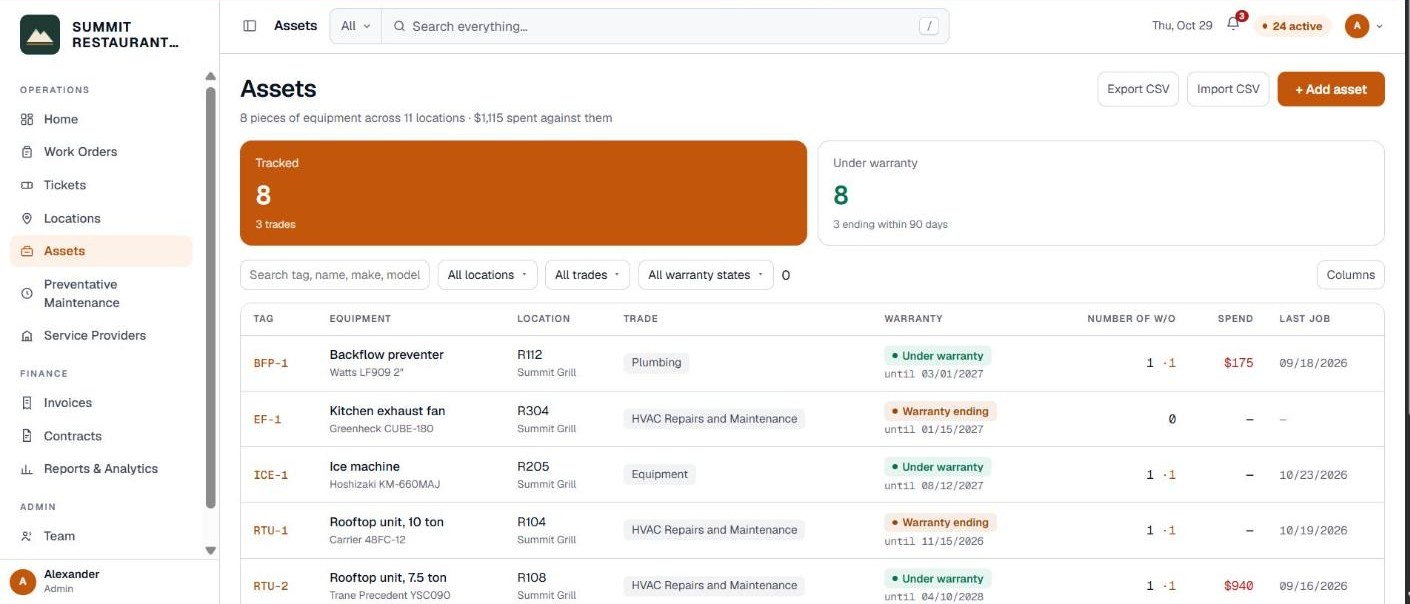
Go to Assets in the menu on the left. Each row is one piece of equipment with its tag, location, trade, warranty and the number of work orders opened against it.
The two tiles at the top show how many units you track and how many are Under warranty, with the number ending within 90 days. Click a tile to filter the list. You can also search by tag, name, make, model or serial number.
How do you add a piece of equipment?
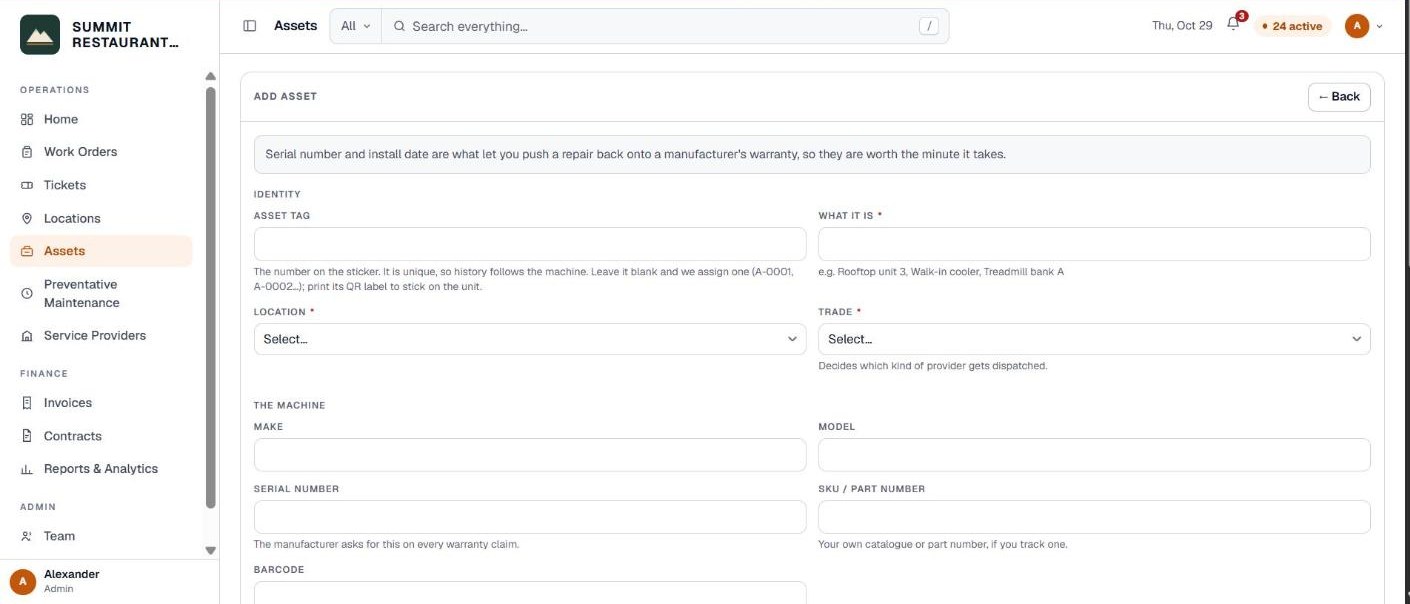
Click + Add asset at the top right. The form has a few sections.
- Asset tag. The number on the sticker. Leave it blank and Pebble assigns one, such as A-0001.
- What it is, Location and Trade. These are required. The trade decides which kind of provider gets dispatched.
- Make, Model, Serial number. The manufacturer asks for the serial number on every warranty claim.
- Installed on and Warranty (months). The warranty is counted from the install date. Leave months at 0 if there is no warranty or you don’t know.
- Notes. Anything worth keeping, such as quirks or where the spare parts live.
Click Save. If you have a lot of equipment, use Import CSV instead. Each row needs a location number that is already in Pebble, so import your locations first.
How does Pebble track the warranty?
From the install date and the number of months, Pebble works out when the warranty ends and shows one of four states.
- Under warranty. More than 90 days left.
- Warranty ending. 90 days or less left.
- Out of warranty. The end date has passed.
- Not recorded. No install date or no warranty months entered.
When someone opens a work order on a unit that is still under warranty, the form shows the end date and a reminder to check coverage before dispatching a paid repair.
What do you see when you open an asset?
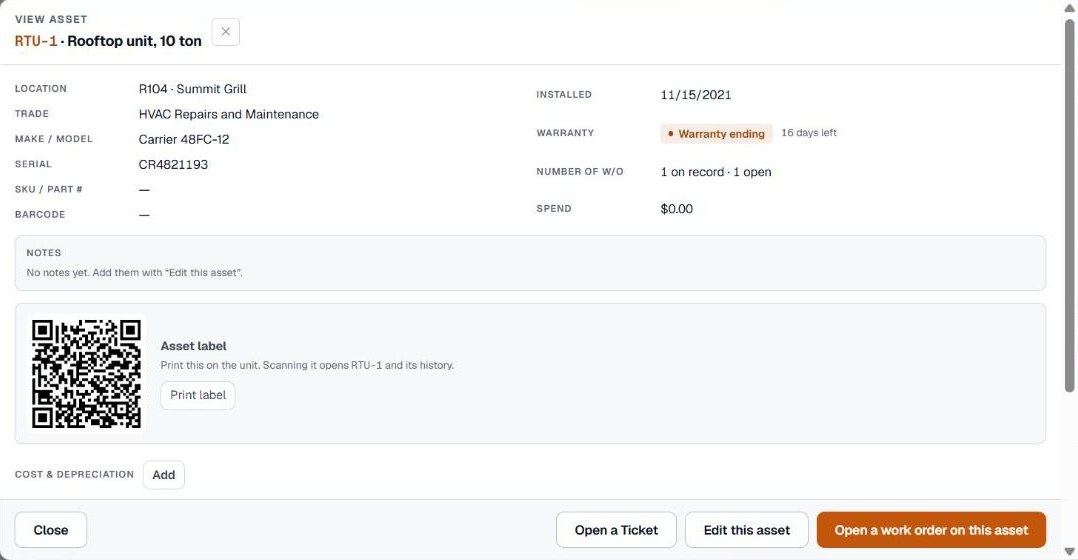
Click any row to open the asset. You see its details, the warranty, how many work orders are on record and how many are open, and its maintenance history with the cost of each job.
From the bottom of the asset you can click Open a work order on this asset or Open a Ticket. Either way the location and the equipment are filled in for you.
How do you print a QR label?
Open the asset. Under Asset label, click Print label. A label opens with the QR code, the asset tag and the serial number, ready to print.
Stick it on the unit. Scanning it with a phone camera opens that asset and its history in Pebble.
How do you record parts and their warranties?
Some parts carry their own warranty, such as a compressor or a control board. Open the asset and, under Parts & warranties, click + Add part.
Give the part a name, and add the part number and serial if you have them. On the Warranty tab, enter its install date and warranty months. Click Save part. This helps make sure a covered repair isn’t paid for twice.
Who can add or change equipment?
It depends on your permissions. Add equipment, Edit equipment and Delete equipment are separate. Purchase cost and depreciation only show for people with See & edit cost and depreciation. If a button is missing, ask an administrator on your account.
Equipment with work orders against it can’t be deleted, because that history is the reason to keep it. If a unit is gone, note it in the name instead.
Related help
Bedrock Facility Solutions
Screens are from a demo account with made-up data.
Published 29 October 2026. Last reviewed 29 October 2026.