How do you set up preventative maintenance in Pebble?
In short
- Go to Preventative Maintenance and click + Add a program.
- Say what gets done, where, the trade and how often.
- Set the first due date and how many days early to open the job.
- When programs come due, click Open due now, or Generate PM on one program.
What is a maintenance program?
A program opens the same job on a schedule, such as a quarterly HVAC service or an annual backflow test, so nobody has to remember it. Each job it opens is a PM work order, numbered PM-0001, PM-0002 and so on.
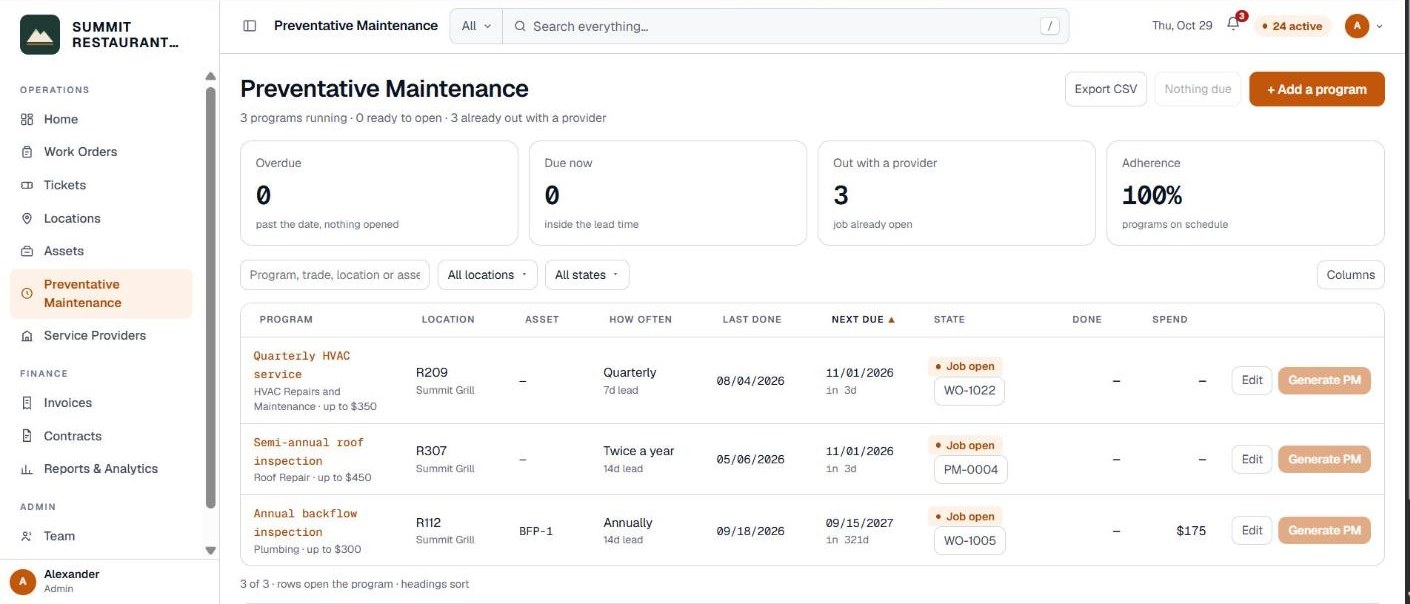
Go to Preventative Maintenance in the menu on the left to see your programs.
How do you add a program?
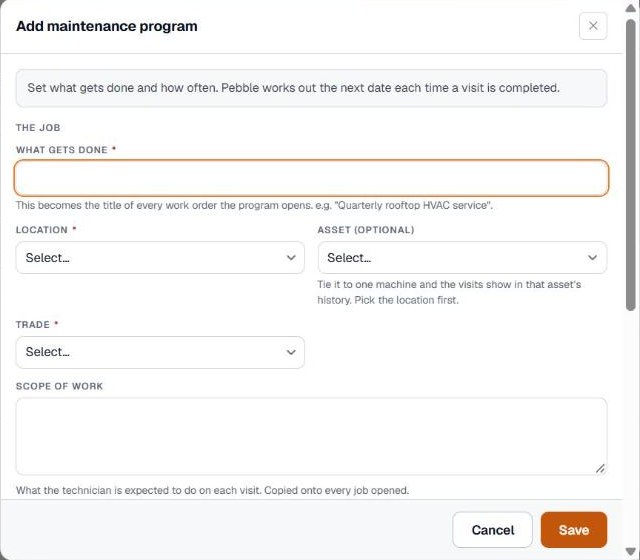
Click + Add a program at the top right and fill in the form.
- What gets done. This becomes the title of every work order the program opens, such as “Quarterly rooftop HVAC service”.
- Location and Trade. Both are required.
- Asset (optional). Tie the program to one machine and its visits show in that asset’s history. Pick the location first.
- Scope of work. What the technician should do on each visit. It is copied onto every job.
- How often. Weekly, Monthly, Quarterly, Twice a year, Annually or Every two years.
- First one due. The date of the first visit.
- Open it this many days early. Gives the provider time to schedule. 7 is a sensible default.
- Preferred provider. Leave it blank to decide each time.
- DNE. Do not exceed. The limit put on each job. Above it, the provider has to quote.
- Running. Leave it ticked to keep opening jobs. Untick it to pause the program.
Click Save.
How are the dates worked out?
You don’t type the next date. Until the first visit is done, it is the date you set. After that, it is one cycle from the day the last job was actually completed. A visit that slips doesn’t push every future visit out of step.
What do the states mean?
- Overdue. Past the date and nothing has been opened.
- Due now. Inside the lead time, ready to open.
- Job open. A job from this program is already out with a provider.
- On schedule. Not due yet.
- Paused. The program is not running.
- No date. The program has no due date.
Adherence at the top shows the share of running programs that are on schedule.
How do you open the jobs?
When programs come due, a button at the top shows how many, such as Open 3 due now. Click it and Pebble opens a PM work order for each one. A program that already has an open job is skipped, so it is safe to click again.
To open one program on its own, click Generate PM on its row. The new work order form opens with the program, location, trade and scope already filled in, so you only review it and add what is missing.
If the button says Nothing due, no program is inside its lead time yet.
Who can set up programs?
Adding, editing and deleting programs are separate permissions: Add maintenance programs, Edit maintenance programs and Delete maintenance programs. Opening the jobs needs Open work orders. If a button is missing, ask an administrator on your account.
Related help
Bedrock Facility Solutions
Screens are from a demo account with made-up data.
Published 29 October 2026. Last reviewed 29 October 2026.