How do you read your reports in Pebble?
In short
- Go to Reports & Analytics and pick a period at the top right.
- Overview shows what was opened, what is still open, spend and on-time to site.
- Financial, Operations, Assets & PM and Team go deeper.
- Click Export on a table to download it as a spreadsheet.
Where are the reports?
Go to Reports & Analytics in the menu on the left. At the top right, pick the period: This month, Last 30 days, This quarter, This year or Everything. Every number on the page follows that choice.
Reports count work orders opened in the period. Tickets that haven’t been turned into work orders aren’t counted.
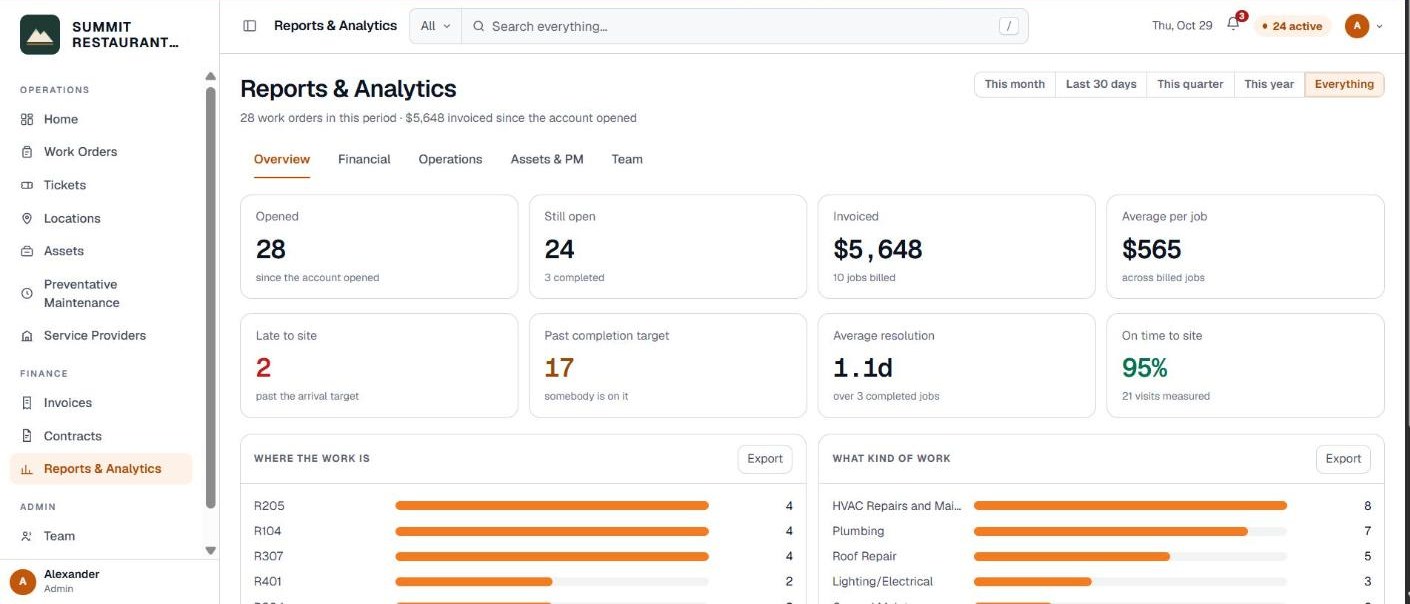
What does the Overview show?
- Opened and Still open. How many jobs were opened in the period, and how many of those are not finished.
- Invoiced and Average per job. What has been billed, and the average across billed jobs.
- Late to site. Open jobs past their arrival target.
- Past completion target. Open jobs where someone is on it but the completion target has passed.
- Average resolution. The average number of days to complete a job.
- On time to site. The share of visits where the technician arrived by the target.
- Where the work is and What kind of work. Jobs by location and by trade.
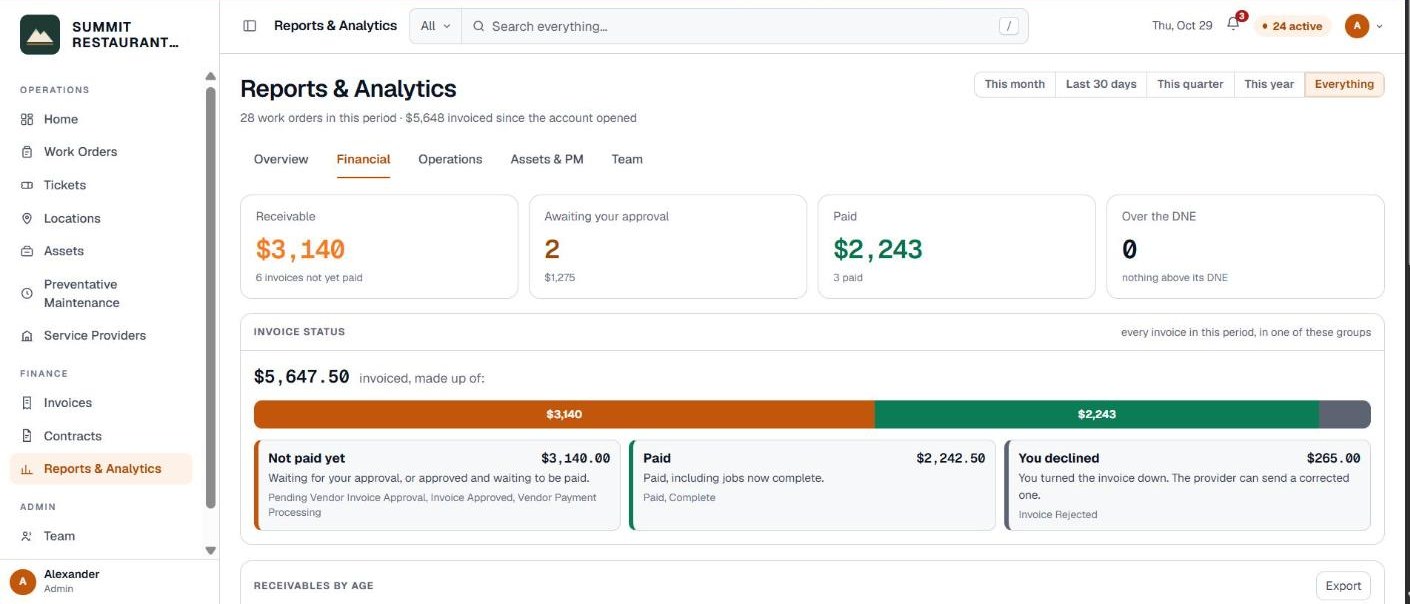
What is on the Financial tab?
- Invoice status and Receivables by age. What is still unpaid and for how long. Age is counted from the day the invoice reached you, and anything past 60 days is worth chasing.
- Spend by trade, by location and by provider.
- Quotes against final invoices. The average difference between what was quoted and what was billed.
- Billed above the DNE. Jobs where the invoice came in over the limit, and by how much.
What is on the Operations tab?
- How long open work has been open, from under 2 days to over a month.
- Open work by status and Priority mix.
- Opened against completed, by week. Whether work is piling up or getting cleared.
- Watchlist. Every job that is late to site or past its completion target, with how late it is.
What is on the Assets & PM tab?
- Cost by asset and Fleet warranty status.
- Replacement exposure. Equipment with three or more jobs against it. At some point replacing a unit costs less than repairing it again, so these are the ones to price up.
- Warranties expiring in the next 90 days.
- Preventative maintenance due in the next 30 days.
What is on the Team tab?
Workload lists each person on your account with how many jobs they opened, how many they own, how many are open now, and the spend on the jobs they own.
Who can see reports?
Reports need the See costs, quotes & invoices permission. Downloading a table with Export needs Export financial reports. If you don’t have them, ask an administrator on your account.
Related help
Bedrock Facility Solutions
Screens are from a demo account with made-up data.
Published 29 October 2026. Last reviewed 29 October 2026.