How do you add a service provider in Pebble?
In short
- Go to Service Providers and click + Add provider.
- Fill in the company name, the trades they cover and where they are based. The ZIP and service radius decide which locations they can reach.
- Tick the paperwork you hold and choose what they must do at every visit.
- A new provider is invited to the Provider Portal automatically when you save.
Where do you add a provider?
Go to Service Providers in the menu on the left. The page lists every company you send work to, with their trade, contact, insurance, paperwork, jobs, spend, on-time rate and rating.
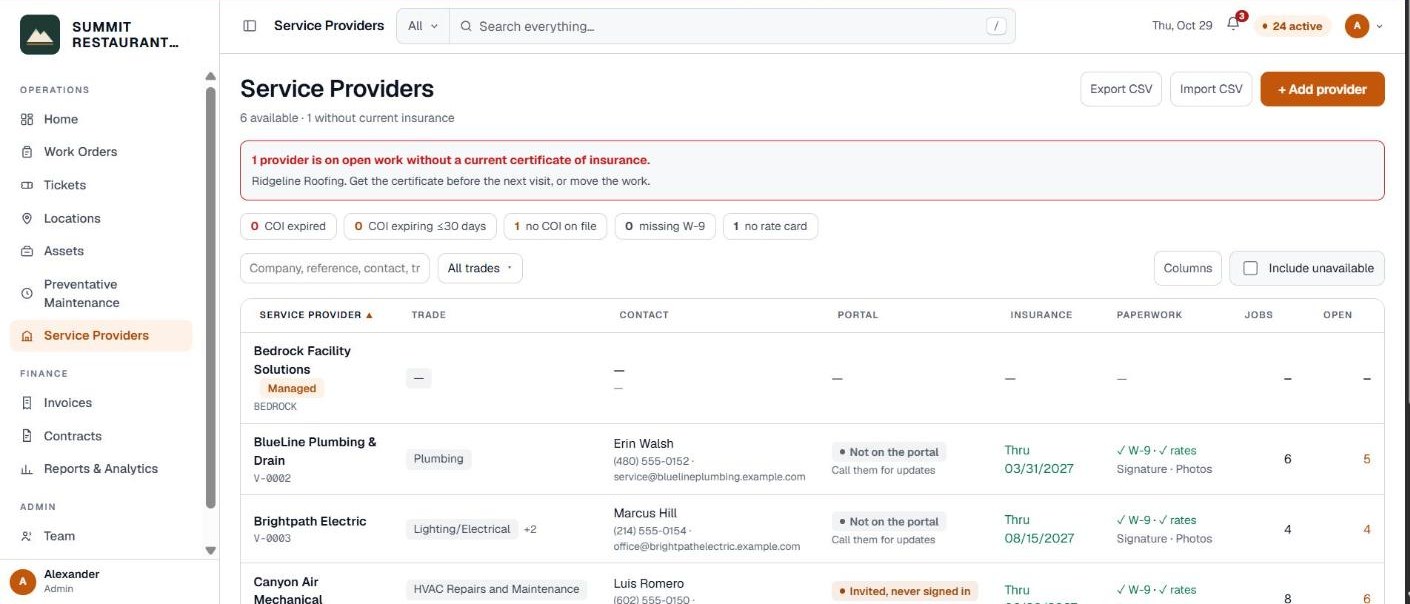
Click + Add provider. If you don’t see the button, your role doesn’t include Add providers. Ask an administrator on your account.
Already have a list in a spreadsheet? Click Import CSV to bring across the providers you already use. Anything you leave out can be filled in later.
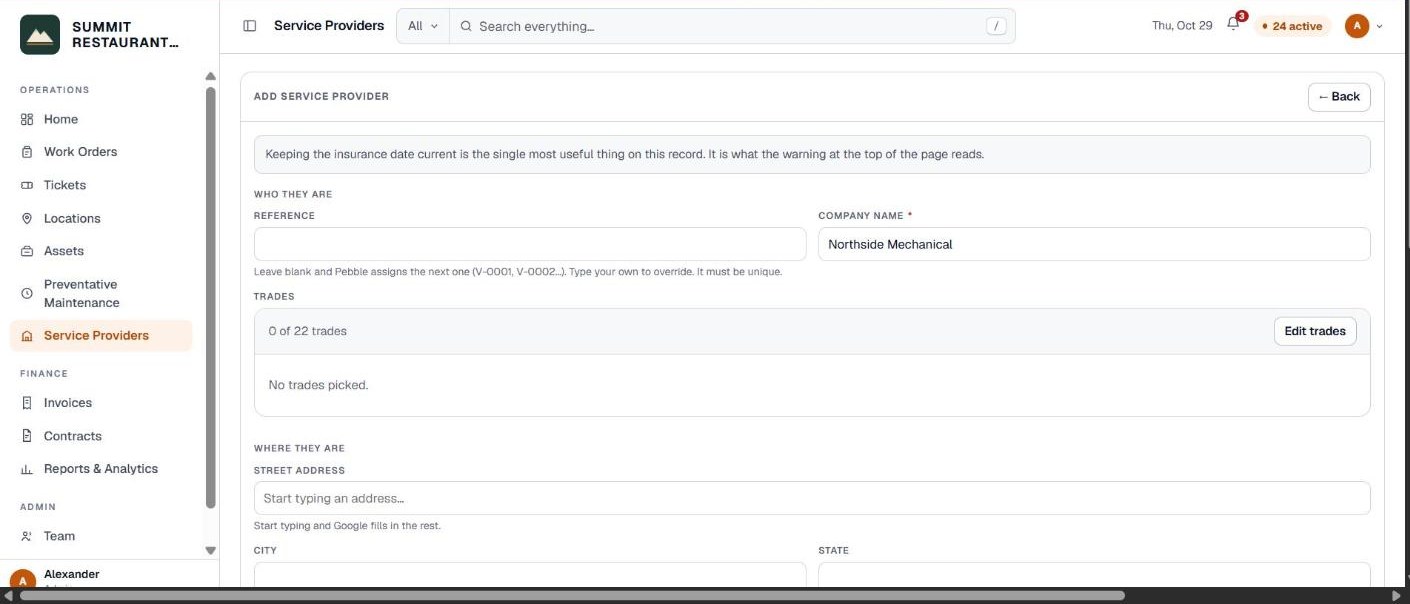
Who they are
- Company name. The only required field in this section.
- Reference. Leave it blank and Pebble assigns the next one (V-0001, V-0002 and so on). Type your own to override it. It must be unique.
- Trades. Pick each trade they do, and the sub-trades under it. This is what puts them at the top of the list when you open a work order for that trade.
Where they are and how far they travel
- Street address. Start typing and Google fills in the rest.
- ZIP. This is what matches a provider to a location by distance.
- Service radius (miles). How far they will travel. Leave it blank to use your account default. One firm might do 25, another 75.
- Time zone. The provider’s own zone, used in their portal. A job’s times always follow the location’s zone.
When you open a work order, Pebble uses the ZIP and radius to show how far each provider is from the location and whether it’s inside their range.
Under How to reach them, add the main contact, phone and email. Job emails go to that email address.
Paperwork and on-site rules
- Certificate of insurance on file. Tick it if you hold a current COI, then add the COI expiration date. An expired certificate is flagged on the Service Providers page.
- W-9 on file and Rate card on file. Tick each one you hold.
- Available for work. Leave it ticked so they can be dispatched.
- Store manager signature required. The technician can’t check out until the store manager signs. Turn it off and they can check out without one, and the visit shows “Not signed”.
- Before and after photos required. Turn it off and photos are optional.

Click Save. Keeping the insurance date current is the single most useful thing on this record, because it drives the warnings at the top of the page.
How do they get on the Provider Portal?
A new provider is invited automatically when you add them. Pebble emails them a link to set a password and sign in at network.bedrockfms.com. There they can accept jobs, set the visit time, check in and out, and send quotes and invoices.
The Portal column shows where each provider stands:
- On the portal. Someone there has signed in. They can open their jobs, accept them and send updates.
- Invited, never signed in. They get the job emails, but can’t open a job, accept it or send updates until they sign in. Call them, or send the invite again.
- Not on the portal. They get the job emails if their record has an email. Call them for updates, or invite them.
To send the invite again, open the provider and click Invite to portal under Provider Portal.

Can you delete a provider?
Only an administrator can delete a provider, and only if they aren’t named on any work orders. If they are, switch off Available for work instead. They stop appearing when you dispatch, and the history stays intact.
Related help
Bedrock Facility Solutions
Screens are from a demo account with made-up data.
Published 29 October 2026. Last reviewed 29 October 2026.