How do your service providers use Pebble?
In short
- Providers sign in to the Provider Portal at network.bedrockfms.com. It is free for them.
- They accept or decline each job, set the visit date and time, and put up to three technicians on it.
- Technicians check in when they arrive and check out when they leave, with notes, photos and a sign-off.
- Quotes and invoices are built and sent from the job, and you approve them in Pebble.
How do providers get in?
When you add a provider, Pebble emails them a link to set a password and sign in at network.bedrockfms.com. One login covers every client they work for in Pebble.
Each person at the provider has a role, which decides what they can do:
- Admin runs the company account, its people and its documents.
- Dispatcher accepts jobs, sets the schedule and puts technicians on them.
- Billing sends quotes and invoices and keeps the insurance and W-9 current.
- Technician sees My day: the jobs they’re on, with the address, the on-site contact and what needs doing.

Accepting a job
A new job shows on the provider’s Home and Work Orders. They open it and press Accept, or Decline. A decline can include a reason, such as no technician free this week.
The job shows everything they need: the location and address, the service area, the on-site contact, the priority, the scope of work and your DNE. The arrive-by and complete-by times come from the priority you picked.
Setting the visit time and the technicians
- Under Schedule & timing, they pick the date and the time they’ll be on site and press Save. The time is on the location’s clock. Saving it also moves the job to In progress.
- In Site visits, they type up to three technician names and press Assign. No login or profile is needed. Names they’ve used before come up as they type.
- A technician without a login can be sent a visit link by email. It works for one visit only, until they check out or the end of the visit day.
Checking in and out on site
When the technician arrives, they open the job and press Check in. The job moves to On site. When they leave, they pick how it ended:
- Work complete. You check the work, then their Billing sends the invoice.
- Not finished, coming back. The job goes to Follow Up.
- Materials needed. The job goes to Waiting on Materials.
- Pending quote. The job goes to Pending Quote.
They write what was done under Work Performed and press Check out. If you require it on their record, they also add before and after photos and the store manager’s name with a photo of the signed ticket. Without a signed ticket the visit shows “Not signed”.
If a provider isn’t on the portal, or calls you instead, you can record the visit yourself. Open the job and click Record a visit in the Visits card.
Quotes and invoices
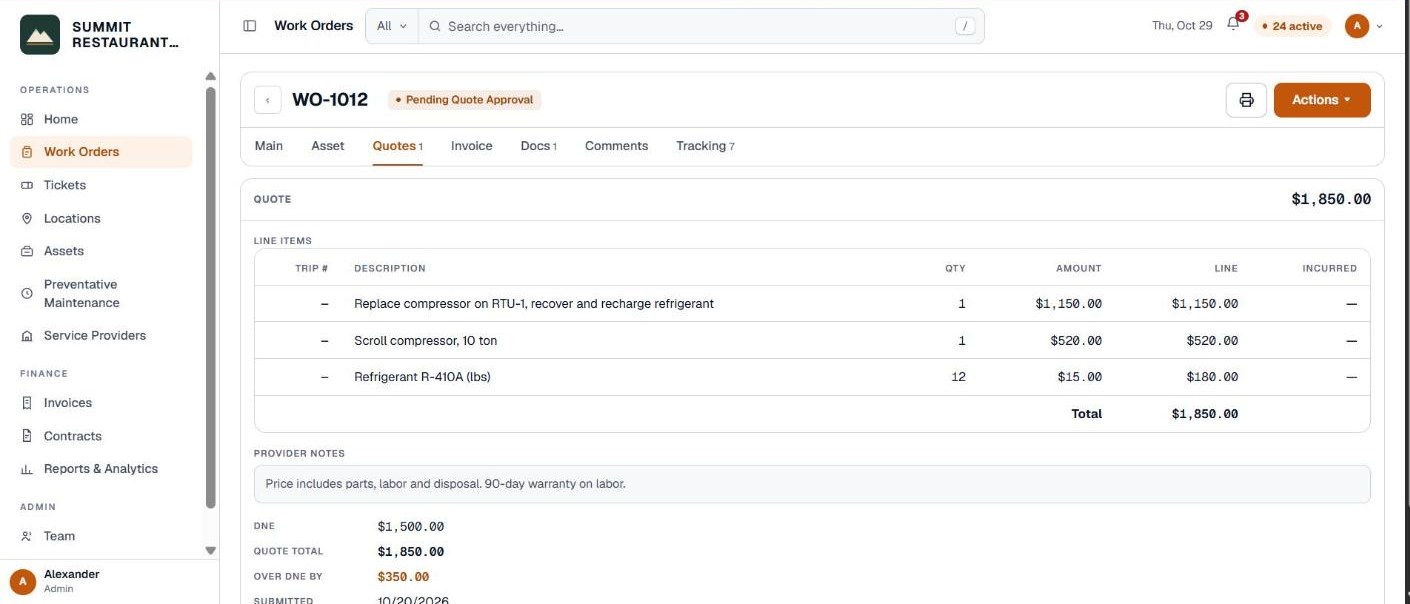
- Quote. When the work will cost more than your DNE, they open the job, go to Quotes, add their lines with + Add line, describe the work and press Submit quote. A quote needs at least one line and a description.
- Invoice. Once you’ve checked the work, they go to Invoice, add their lines and their own invoice number, and press Submit invoice. Pebble gives the invoice its own number, which is how you track it.
- Quotes & invoices in the portal shows every quote and invoice, for every client, grouped by where it is, from quotes to send to Paid.
You approve or reject each quote and invoice in Pebble. The provider sees the answer on the job.
Talking about the job
Providers ask questions under Comments on the job, and you see them straight away and can answer there. They can also add photos or a PDF to the job, such as before and after photos or a parts receipt.
Related help
Bedrock Facility Solutions
Screens are from a demo account with made-up data.
Published 29 October 2026. Last reviewed 29 October 2026.