How do you invite your team and set permissions in Pebble?
In short
- Go to Team and click + Invite someone.
- Pick a role as a starting preset: Admin, Manager, Store Manager, Billing or Viewer. Then change anything for that one person.
- Choose Every location or Named locations only. Someone limited to named locations can’t open anything else.
- Use Switch off to stop someone signing in. Their work orders stay.
The Team page
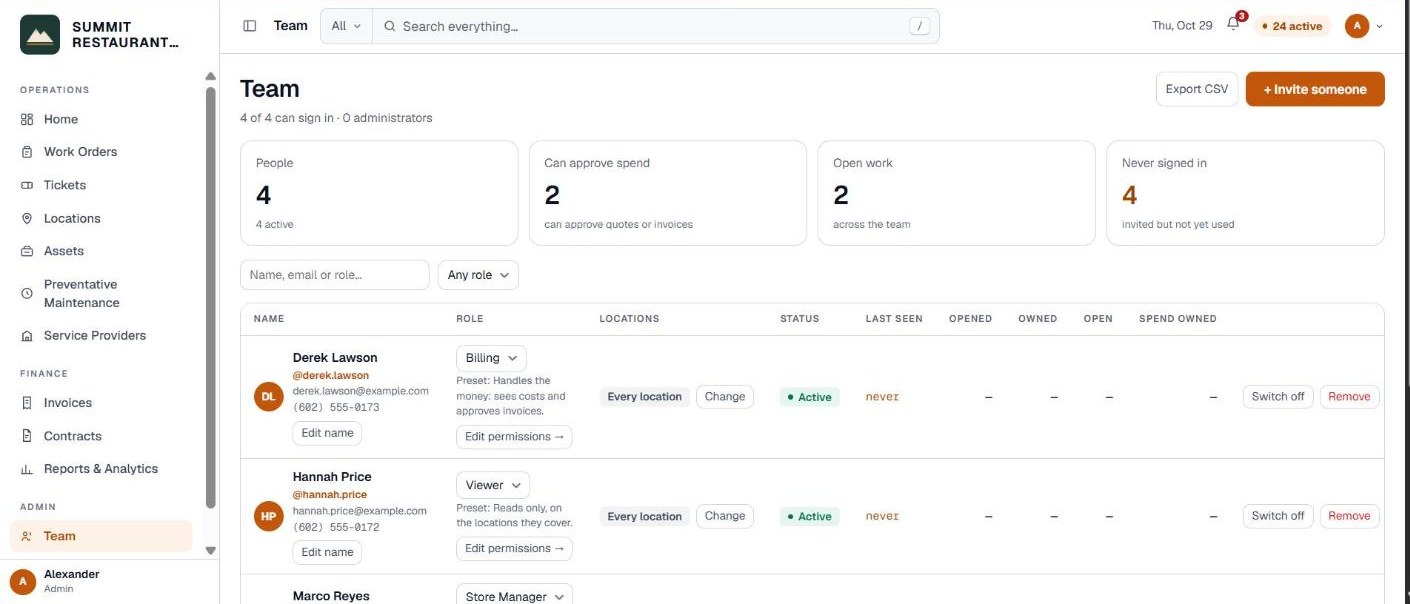
Click Team in the menu on the left. The tiles count the people on the account, who can approve spend, the open work across the team, and who has never signed in.
Each row shows the person’s role, the locations they cover, whether they can sign in, when they were last seen, and how much work they opened and own.
Inviting someone
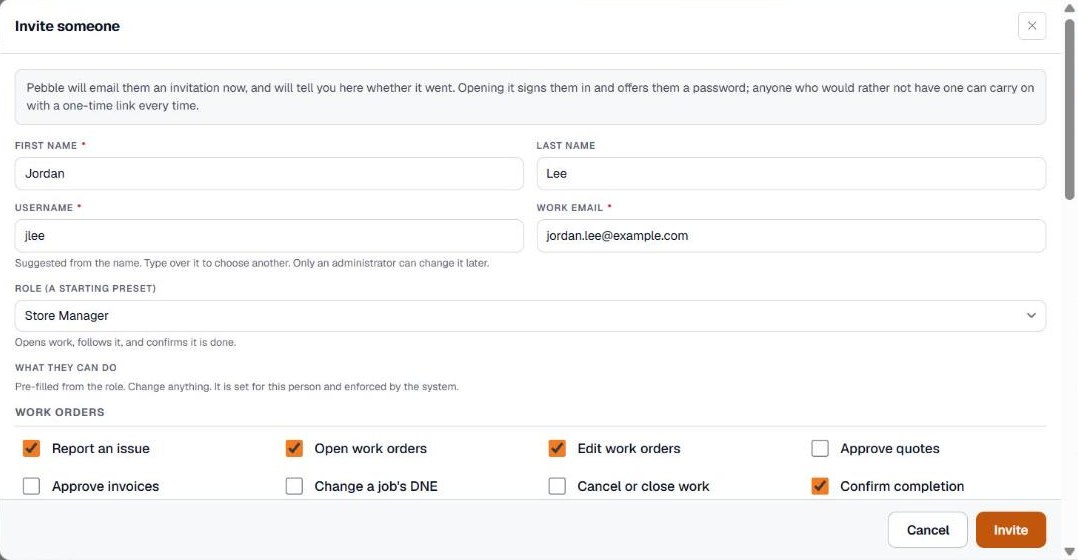
Click + Invite someone and fill in the form.
- First name and Last name.
- Username. What colleagues type after an @ to mention them. Pebble suggests one from the name. Only an administrator can change it later.
- Work email. Where the invitation goes.
- Role (a starting preset). See the roles below.
- What they can do. Pre-filled from the role. Change anything. It is set for this person and enforced by the system.
- Locations they cover. Pick Every location, which includes locations added later, or Named locations only and tick them.
Click Invite. Pebble emails an invitation. Opening it signs them in and asks them to choose a password. They can skip that and use one-time links instead.
The roles
A role is a starting point. You can change what each person can do afterwards.
- Admin. Everything, and cannot be locked out. Only an administrator can add another administrator.
- Manager. Runs the day to day: opens and manages work, approves money, edits the registers.
- Store Manager. Opens work, follows it, and confirms it is done.
- Billing. Handles the money: sees costs and approves invoices.
- Viewer. Reads only, on the locations they cover.
Changing what one person can do
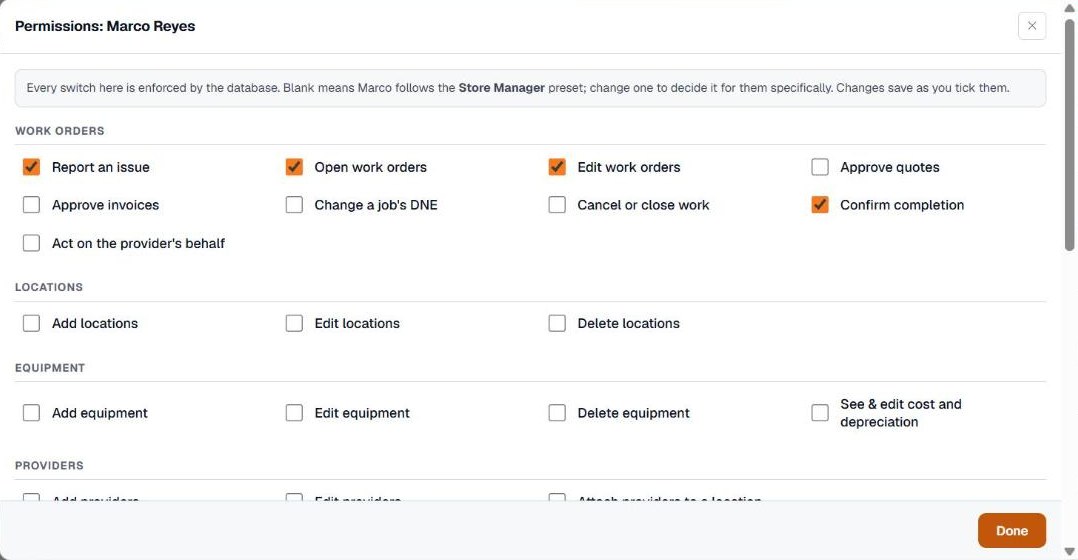
On their row, click Edit permissions →. The permissions are grouped by area:
- Work orders: report an issue, open, edit, approve quotes, approve invoices, cancel or close work, confirm completion.
- Locations, Equipment, Providers, Maintenance and Contracts: add, edit and delete.
- Trades & DNE, SLAs and Account: account settings.
- Team: invite people and change roles, switch people on or off, set who covers which locations.
- Financials: see costs, quotes and invoices, and export financial reports.
Administrators always have everything, so their row says Full access instead.
Changing which locations someone covers
In the Locations column, click Change. Someone limited to named locations only sees those. Anything else, including a link a colleague sends them, will not open.
If someone is set to named locations but none are ticked, Pebble warns you: they can sign in and will see nothing.
Changing a role
Pick a new role from the list on their row. Pebble asks you to confirm before it changes.
When someone leaves
- Switch off stops them signing in. Their work orders stay. Switch on lets them back in.
- Remove permanently removes them from the account. Their work orders stay.
Related help
Bedrock Facility Solutions
Screens are from a demo account with made-up data.
Published 29 October 2026. Last reviewed 29 October 2026.