What does the Home dashboard in Pebble show?
In short
- Home opens when you sign in. The top line says how many work orders are open and how many are waiting on you.
- The three tiles at the top count open work orders, open tickets and locations. Click any of them to open the full list.
- Needs attention lists jobs that are late or where the next move is yours.
- An administrator can turn cards off for the whole account with Customize.
The top of the page
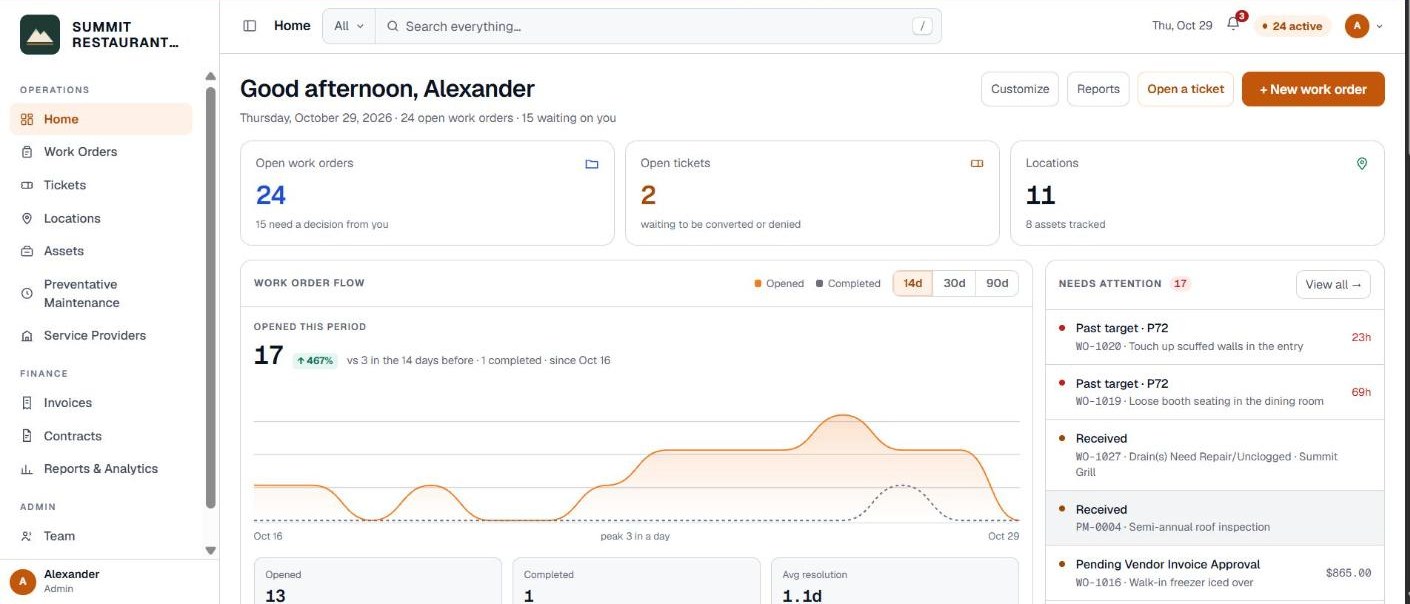
Home greets you by name and shows today’s date, how many work orders are open, and how many are waiting on you.
- + New work order opens a job. See how to open a work order.
- Open a ticket reports a problem for a manager to pick up.
- Reports opens your reports. It shows only if you can see costs.
- Customize lets an administrator choose which cards show. It shows only if you can change account settings.
The three tiles
- Open work orders. Everything still open, and how many need a decision from you.
- Open tickets. Problems reported but not yet turned into a work order, waiting to be converted or denied.
- Locations. How many locations are on the account.
Work order flow
A chart of work orders opened and completed. Switch between the last 14d, 30d or 90d.
Under the chart, Opened and Completed count the last 7 days, and Avg resolution shows how long completed jobs took. Click any of them to open the jobs behind the number.
Needs attention
This card lists jobs that need you now. A job shows here when:
- it is late to arrive, meaning nobody has checked in by the arrive-by time, or
- the next move is yours and you have the permission for it, such as dispatching, approving a quote or invoice, or confirming the work is done.
When nothing is late, the card says Nothing is late. Click View all to see every job on the list.
For you
Messages addressed to you. When someone @mentions you on a job, it shows here first. Click one to open the job. Its ✕ clears it, or Clear all clears the list.
The other cards
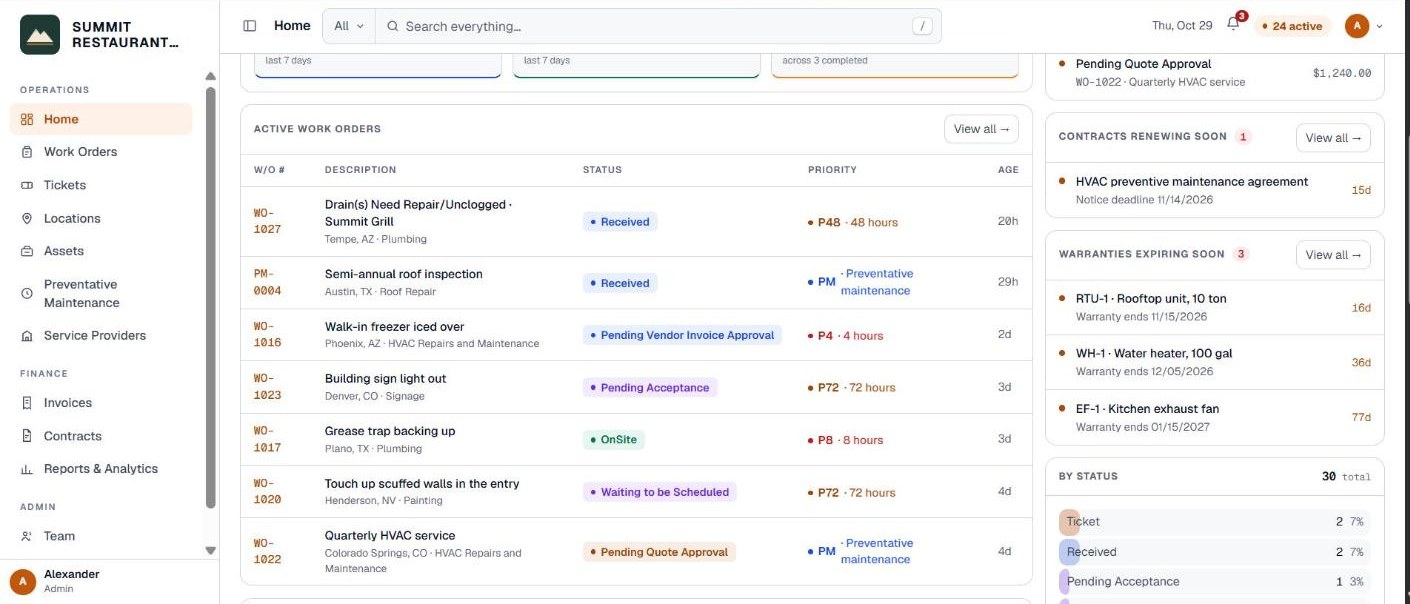
- Active work orders. The open jobs with their status, priority and age. Click a row to open it.
- Spend by location. Which locations cost the most. It shows only if you can see costs.
- By status. How many jobs sit in each status. Click a bar to open the list filtered to that status.
- Contracts renewing soon and Warranties expiring soon. What is coming up, so you can act before it lapses.
- Under warranty. Whether anything has been paid on equipment still under warranty. That may be recoverable from the manufacturer.
- Preventative maintenance. Your scheduled maintenance and what is coming due.
Choosing which cards show
Click Customize, switch cards on or off, and click Save. This turns a card off for everyone on the account. Each person still only sees the cards their permissions allow.
A brand new account
Before any work is opened, Home shows a Setting up card with the first things to do: add your locations, add the equipment, add your service providers, invite the people who open work, and open the first work order.
Related help
Bedrock Facility Solutions
Screens are from a demo account with made-up data.
Published 29 October 2026. Last reviewed 29 October 2026.