How do you set up your locations in Pebble?
In short
- Go to Locations and click + Add location, or bring in the whole portfolio with Import CSV.
- Location number, name, street address, city and state are required. Everything else can be filled in later.
- Open a location to see its assets and its Service Provider Matrix, the providers lined up for each trade.
- A location with work orders cannot be deleted. Set its Status to Closed instead.
The Locations page
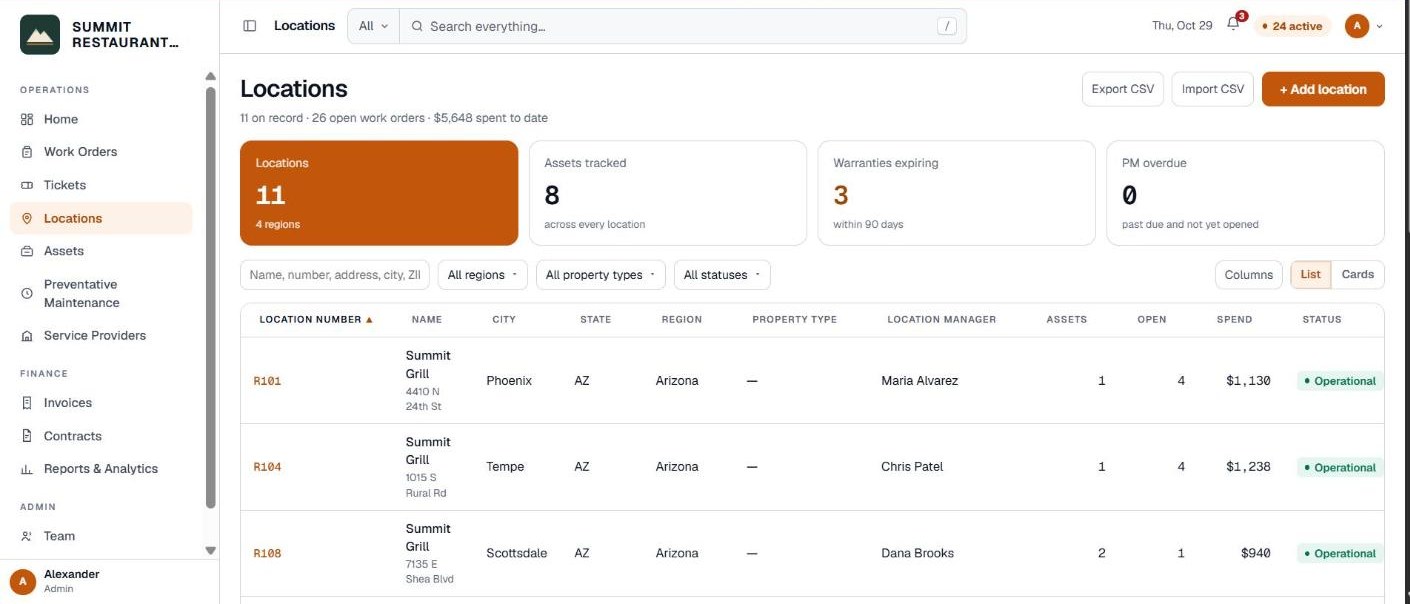
Click Locations in the menu on the left. The tiles at the top count your locations, the assets tracked, warranties expiring and preventative maintenance overdue. Search by name, number, address, city or ZIP, and switch between a list and cards.
Adding one location
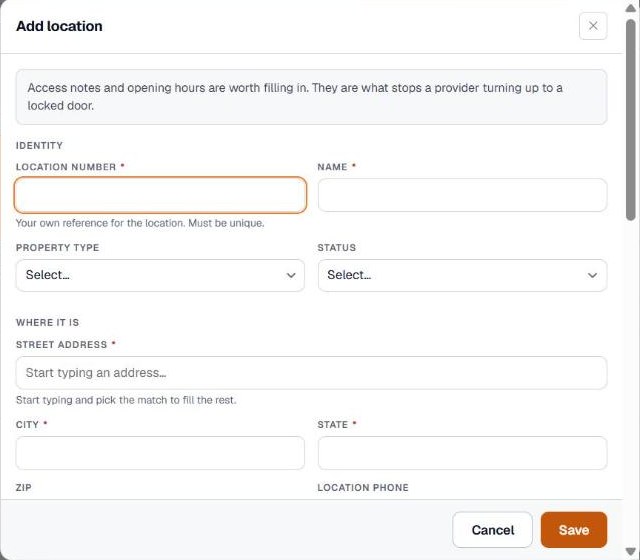
Click + Add location. Fields with a star are required.
- Location number. Your own reference for the location. It must be unique.
- Name, Property type and Status.
- Street address. Start typing and pick the match to fill the rest. City and State are required. Use the two-letter state abbreviation.
- Location phone, Region and District. Region is used to group locations in reports.
- Time zone. Work order times for this location show in this zone. Left blank, it is filled from the state when you save.
- Location manager. The person a provider calls when they arrive.
- Opening hours. Set each day’s hours. Providers use this to schedule.
- Access notes. Gate codes, roof access, escort rules: anything a technician needs before they turn up.
Click Save.
Adding many locations from a spreadsheet
Click Import CSV and click Choose a CSV file. Location number, name, city and state are required for each row. Everything else is optional and can be filled in later.
- Pebble guesses which of your columns goes where. Change any of them, or pick Don’t import.
- Click Next: check rows, then Import.
- A row whose location number is already on file updates that location.
- Rows that can’t go in are listed with the reason, and you can download them to fix and try again.
Inside a location
Click a location to open it. It has three tabs.
- Overview. The address, hours, contact, landlord and lease, a photo, and what is open there now.
- Assets. The equipment at this location.
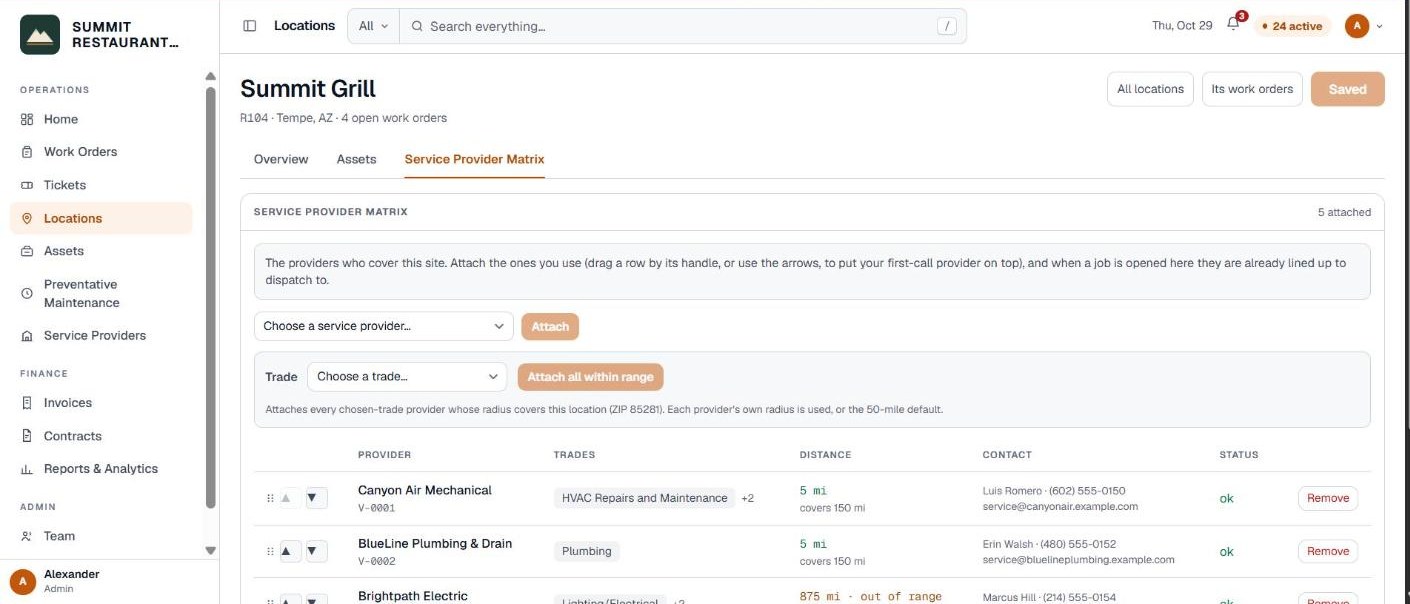
- Service Provider Matrix. The providers who cover this location, by trade.

Lining up providers for a location
Open the Service Provider Matrix tab. Attach the providers you use for this location. Drag a row by its handle, or use the arrows, to put your first-call provider on top. When a job is opened here, they are already lined up to dispatch to.
Who can see a location
Each person on your team covers either every location or named locations only. You set this on the Team page. See inviting your team and setting permissions.
Closing a location
If work orders were ever opened against a location, it cannot be deleted, because those jobs are your maintenance record. Set it to Closed on the Status field instead. It drops out of the lists and keeps its history.
Related help
Bedrock Facility Solutions
Screens are from a demo account with made-up data.
Published 29 October 2026. Last reviewed 29 October 2026.