How do you open a work order in Pebble?
In short
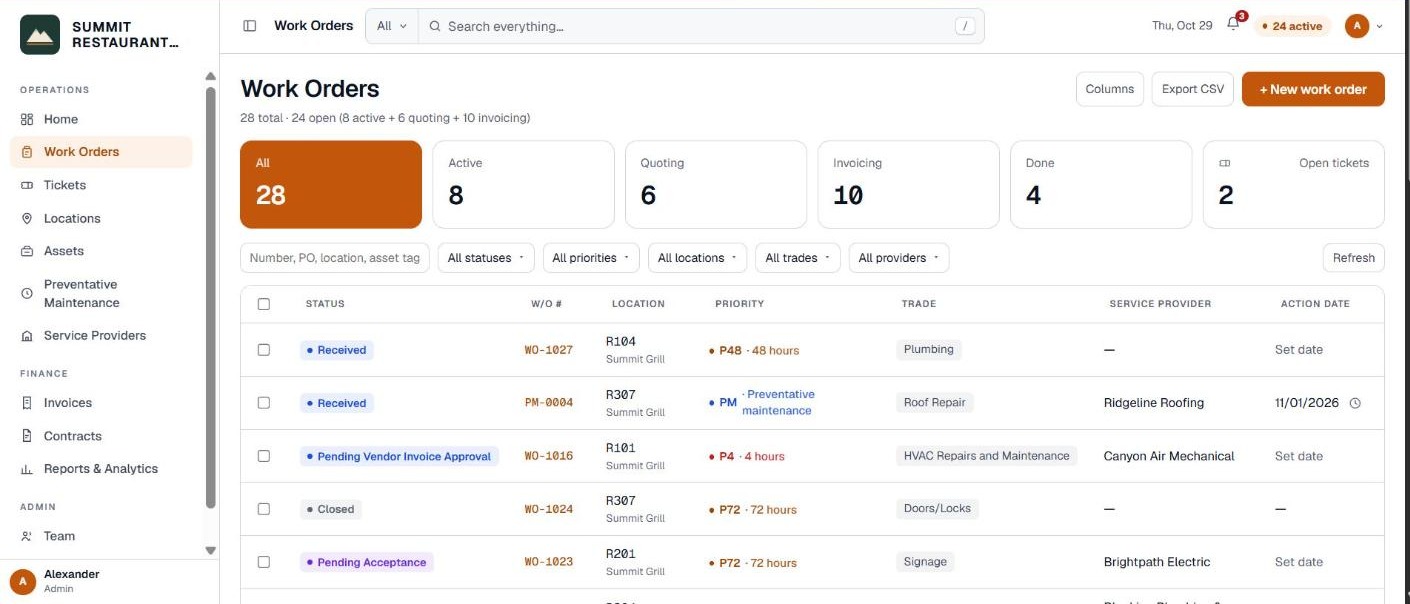
- Go to Work Orders and click + New work order.
- Step 1: pick the location and who reported the problem.
- Step 2: pick the trade, the equipment if you know it, the priority, and describe the problem.
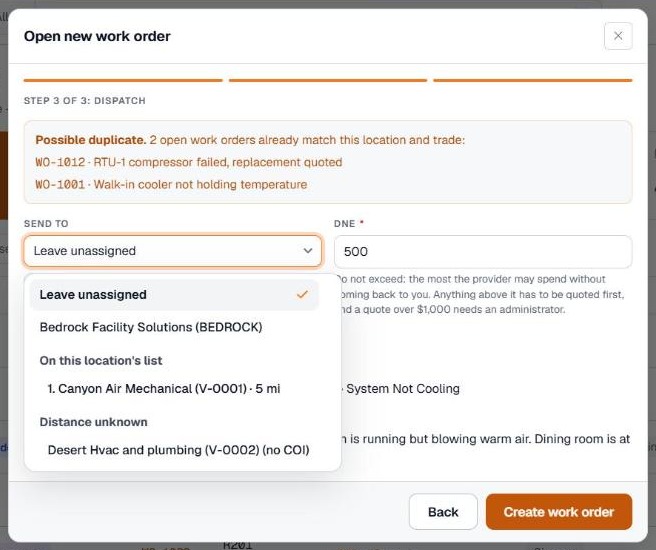
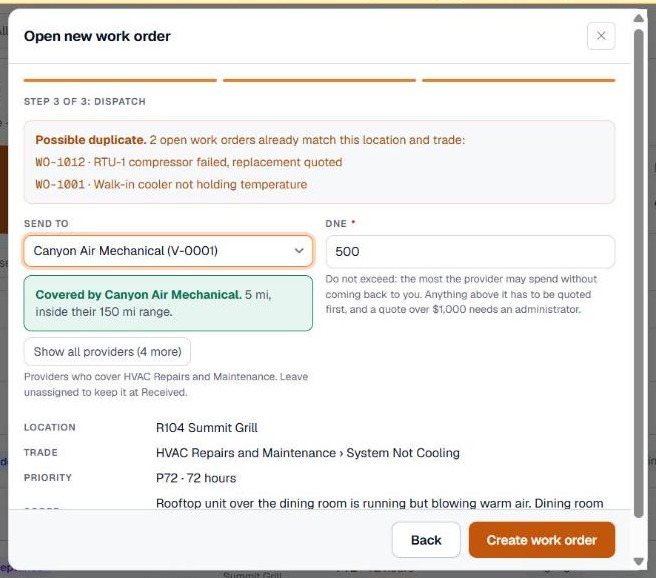
- Step 3: pick a provider and set the DNE, then click Create work order.
Where do you start?
Go to Work Orders in the menu on the left and click + New work order at the top right. A form opens with three steps.
You can also start from a piece of equipment. On the Assets page, open an asset and click Open a work order on this asset. Pebble fills in the location and the equipment for you.
Step 1: Location and requester
Tell Pebble where the problem is and who reported it. Every field with a star is required.
- Type. Leave it on WO for a repair. Pick PM only for a scheduled maintenance visit tied to a program.
- Location. Pick the location from the list. If you only cover one location, it is already filled in.
- Service area. Where in the location, such as the kitchen or the men’s locker room.
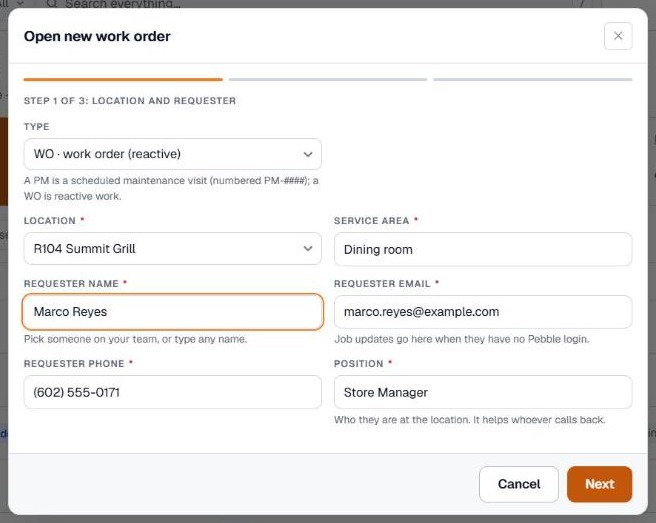
- Requester. Start typing a name. Pick someone on your team and Pebble fills in their email, phone and position. Or type any name, such as a shift manager without a Pebble login.
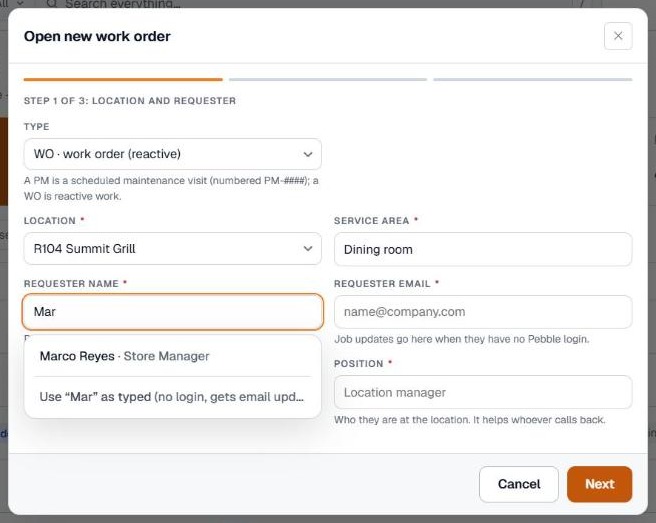
If the requester has no Pebble login, job updates go to the email you enter. The phone number is there so the provider can call ahead.
Step 2: The problem
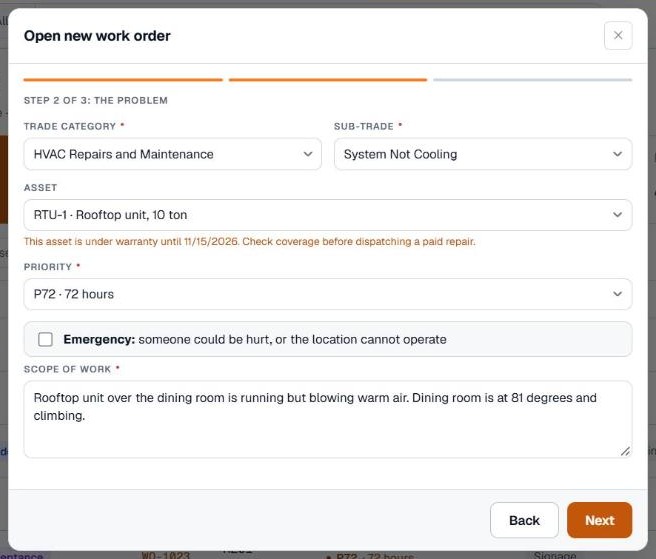
- Trade category and sub-trade. Pick the trade, then the closest sub-trade, such as HVAC and System Not Cooling.
- Asset. Pick the equipment if you know it, or leave it on General location. If the equipment is still under warranty, Pebble shows the end date so you can check coverage before you pay for a repair.
- Priority. How fast the job needs attention, such as P72 for 72 hours. Your account’s priorities appear in the list.
- Emergency. Tick it only if someone could be hurt or the location cannot operate.
- Scope of work. Say where it is, what it is doing, and how it affects the location. A sentence or two is enough.
Step 3: Send it to a provider
If an open job already matches the same location and trade, Pebble warns you at the top. Check it first so the same problem isn’t sent twice.
- Send to. Pebble lists the providers who cover that trade first, with their distance from the location. A provider with no insurance certificate on file shows (no COI). Click Show all providers to see the rest.
- Leave unassigned if you’re not ready to send it. The job stays at Received until you do.
- DNE. Do not exceed. It’s the most the provider can spend without coming back to you. Anything above it has to be quoted first.
What happens after you click Create work order?
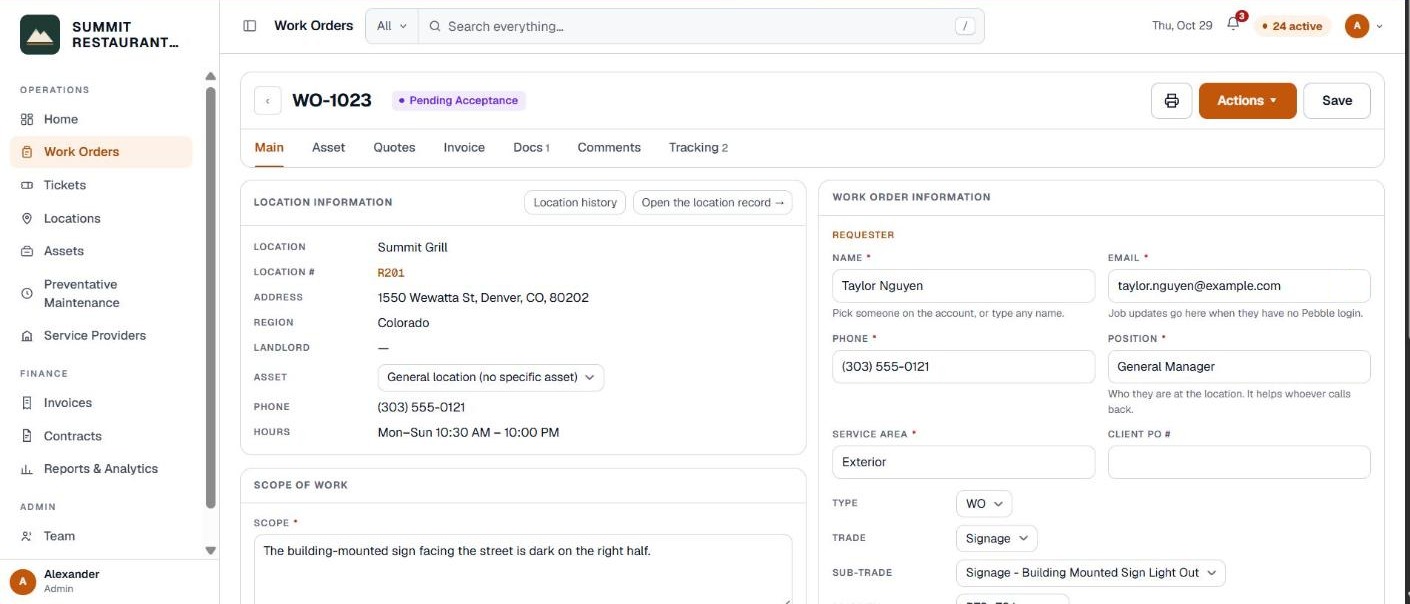
Pebble gives the job a number, such as WO-1028, and opens it.
- If you picked a provider, the status is Pending Acceptance. The job has been sent and is waiting for the provider to accept it.
- If you left it unassigned, the status is Received. Open the job and send it when you’re ready.
- Your scope of work is saved as the first message on the job, so the provider sees it in your words.
What if you don’t see the New work order button?
- Your role may not include Open work orders. Ask an administrator on your account to add it.
- If your account has a past-due balance, new work orders can’t be opened or sent until it’s settled. Your existing records stay available.
Related help
- Reporting a problem with a ticket or QR code
- What each work order status means
- Quotes, invoices and your DNE
Bedrock Facility Solutions
Screens are from a demo account with made-up data.
Published 29 October 2026. Last reviewed 29 October 2026.