How do you report a problem in Pebble with a ticket or a QR code?
In short
- A ticket is a quick way to report a problem. It does not go to a provider until a manager acts on it.
- Click Open a ticket on Home or the Tickets page, or scan the QR label on a piece of equipment.
- Managers get told, then click Convert to work order or Deny.
- The person who reported it is told either way.
What is a ticket?
A ticket is a problem someone has reported but nobody has sent to a provider yet. It is lighter than a work order: there is no provider to pick and no DNE to set. It waits on the Tickets page until a manager turns it into a work order or denies it.
Reporting a problem is switched on for every role by default, including Viewers. The permission is called Report an issue. You still need to be signed in to Pebble to report one.
How do you open a ticket?
Click Open a ticket on Home, or go to Tickets in the menu and click Open a ticket at the top right.
- Location. Where the problem is.
- Equipment. Optional. The exact unit, if you scanned it or know it.
- What kind of problem? and Which part? Pick the trade and the closest match.
- Scope of work. Where it is, what it is doing, and how it affects the location.
- Your name, Email, Phone, Position and Service area. All required, so whoever picks it up can reach you. Job updates go to the email.
- Photos. Optional, up to 6. A picture helps whoever picks it up.
- Send to. Pick a manager, or leave it on Any manager if you are not sure.
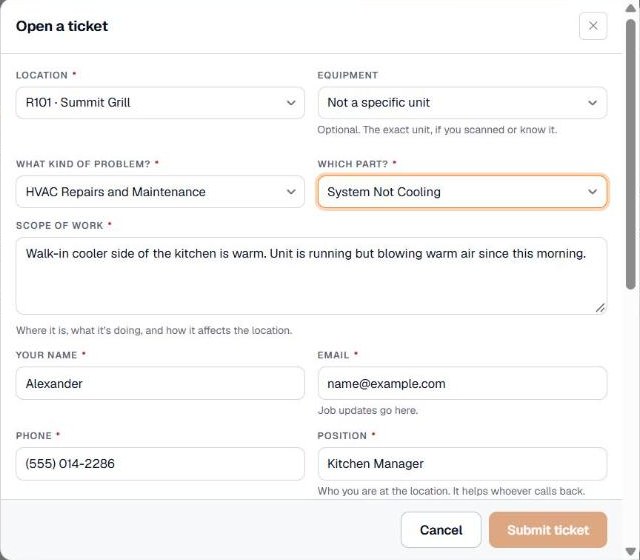
If the same problem is already open, Pebble shows This may already be reported. You can add your note to that job instead of filing a second ticket, or choose to file a separate one.
How does the QR code work?
Every asset in Pebble has a QR label. Open the asset on the Assets page and look for Asset label. Click Print label and stick it on the unit.

When someone scans the label with their phone camera and signs in, Pebble opens that asset. From there, Open a Ticket starts a ticket with the location and the equipment already filled in.
What happens to a ticket?
Pebble gives the ticket its own TK number and tells the managers who cover that location. It shows on the Tickets page under Open.
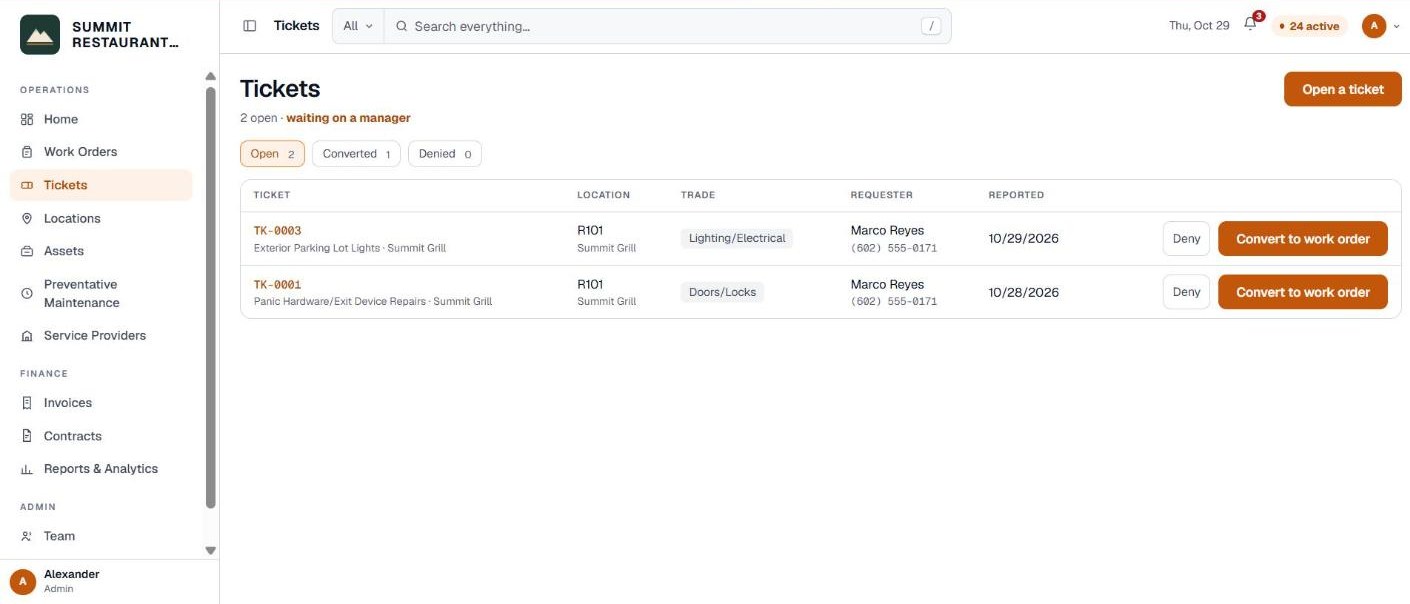
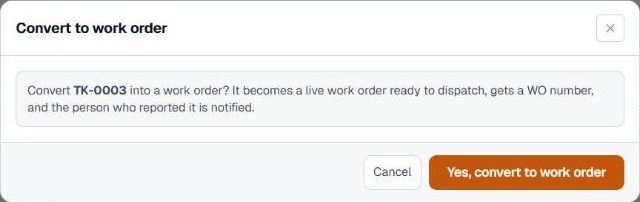
- Convert to work order. The ticket becomes a live work order ready to dispatch, with a WO number. Pebble asks first, then tells the person who reported it.
- Deny. Type a short reason and click Yes, deny this ticket. The reporter sees the reason.
Converting or denying needs the Open work orders permission. Without it, an open ticket shows Waiting on a manager. Converted tickets move to the Converted tab with an Open work order button, and denied ones move to Denied.
Related help
Bedrock Facility Solutions
Screens are from a demo account with made-up data.
Published 29 October 2026. Last reviewed 29 October 2026.