How do comments, @mentions and notifications work in Pebble?
In short
- Every work order has a Comments tab that keeps the whole conversation on the job.
- Type @ to bring in a colleague who covers that location.
- Tick the box to email a comment to the provider. Otherwise it stays with your team.
- Choose bell, email or a daily summary under Your Account, on the Notifications tab.
Where are the comments on a job?
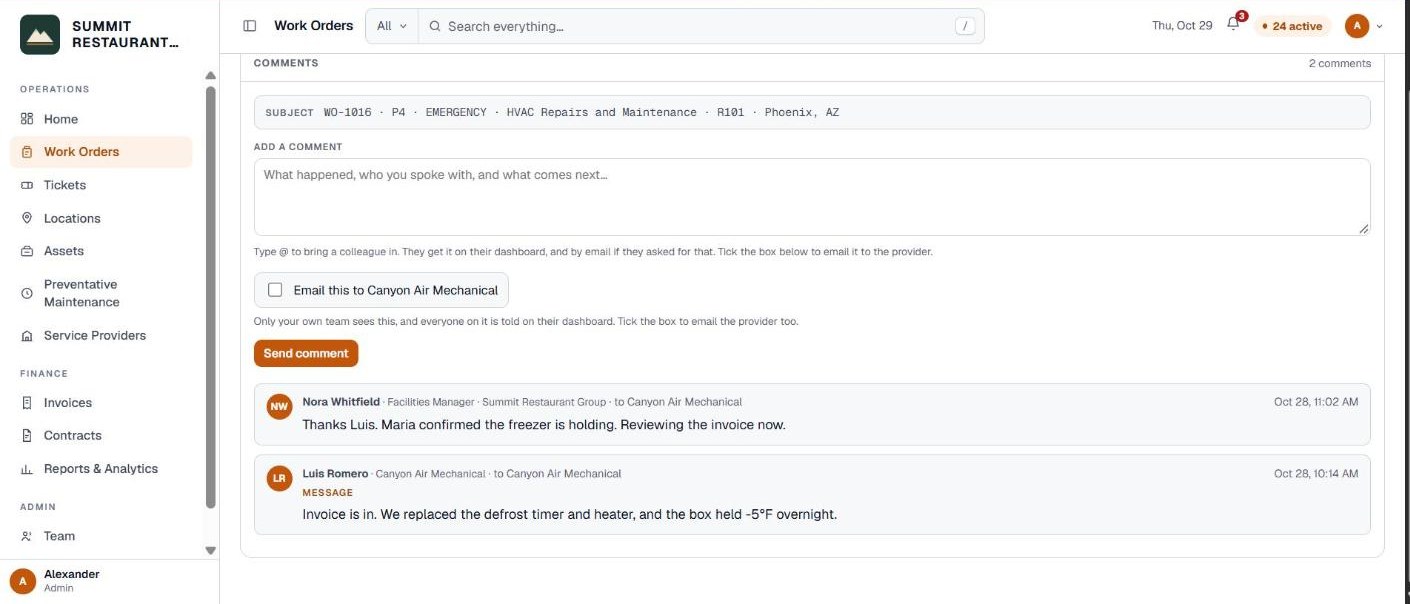
Open a work order and click the Comments tab. Every message on the job carries the same subject line, so the thread reads as one piece of correspondence.
Each comment shows who wrote it and who it went to: to your team, or to the provider by name.
How do you post a comment?
Type in Add a comment. Say what happened, who you spoke with, and what comes next. Then click Send comment.
- Left unticked, the comment stays with your team, and everyone on it is told on their dashboard.
- Ticked, the box Email this to the provider sends it to them by email, and keeps it on the job as the record that it was sent. Pebble asks before it sends a message outside your account.
If no provider is assigned yet, there is nobody to email, so the comment stays on your side until one is.
How do @mentions work?
Type @ in the comment box and start typing a name. Pebble lists the people who cover that location, with their role. Pick one and Pebble shows who will be told before you send it.
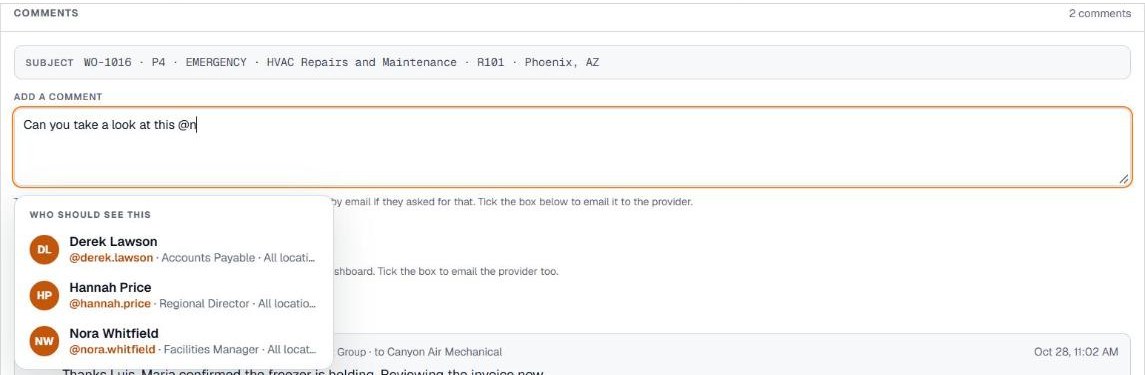
The person you mention gets it on their dashboard, and by email if they asked for that. Only people who cover the location can be brought in. If an @ doesn’t match anybody, Pebble warns you that nobody will be notified.
How do you choose your notifications?
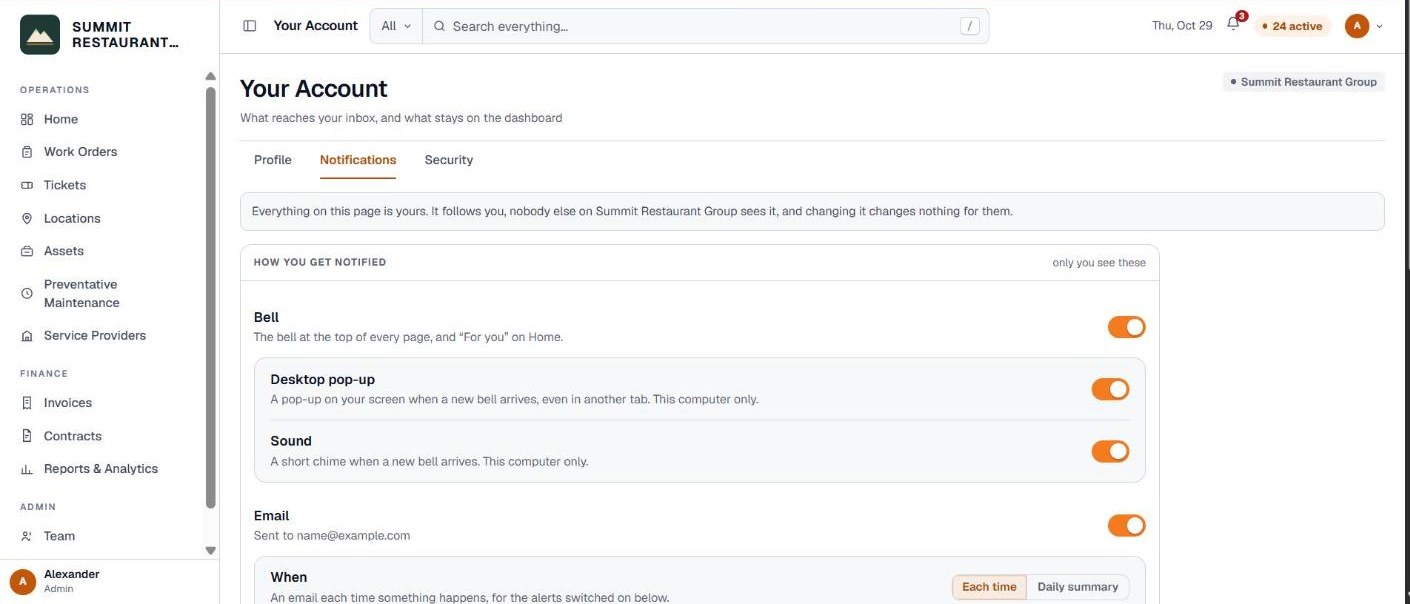
Click your name or picture at the top right, open Your Account, and go to the Notifications tab. Only you see these settings.
- Bell. The bell at the top of every page, and For you on Home.
- Desktop pop-up and Sound. For this computer only.
- Email. Choose Each time or a Daily summary each morning. Send me a test checks that it reaches you.
Under Notify me about you switch each kind of alert on or off, such as when somebody @mentions you, a quote needs approving, an invoice is in review, or a work order is late. You only see the alerts your role covers.
Related help
Bedrock Facility Solutions
Screens are from a demo account with made-up data.
Published 29 October 2026. Last reviewed 29 October 2026.